
Every smartphone battery gets weaker over time. If your phone used to last all day and now dies by the evening, the battery is slowly losing its capacity.
While iPhones show an exact battery health percentage right in the settings, Android works differently. Many people install third-party battery saver apps to check this, but most of those apps do nothing except fill your screen with ads and drain your power in the background.
You do not need to install anything extra. Here are 4 simple ways to check your Android phone’s battery condition using built-in settings and simple menus.
Quick Comparison of Methods
| Method | Best For | What You Can See |
| Phone Settings | OnePlus, Oppo, Realme, newer Pixels | Direct battery health percentage or status |
| Samsung Members | All Samsung Galaxy phones | Clear condition rating (Good or Normal) |
| Dialer Code | Motorola, Xiaomi, older Android phones | Hidden battery testing menu |
| Battery Usage Screen | Any Android phone | Daily screen time and sudden power drops |
Method 1: Check Through Your Phone Settings (Newer Models)
Recent Android updates have started adding direct battery health menus, just like iPhones.
- Open Settings on your phone.
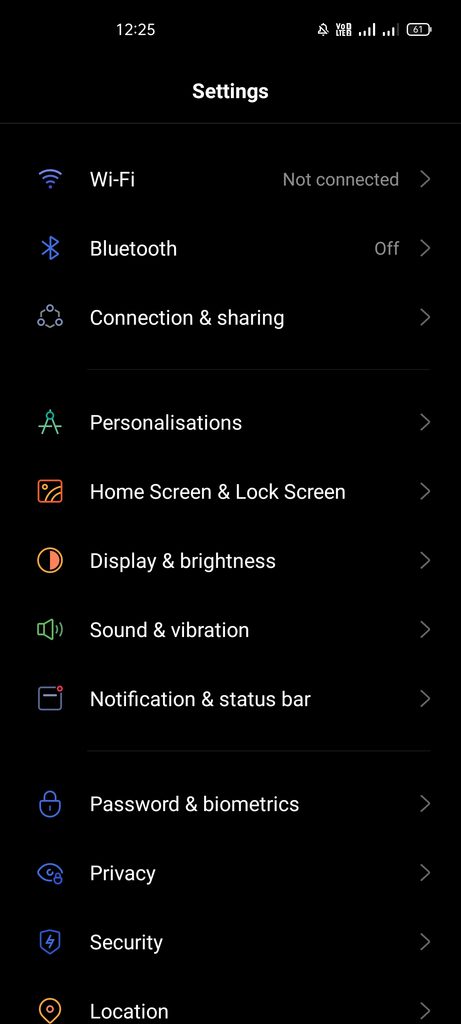
2. Tap on Battery.
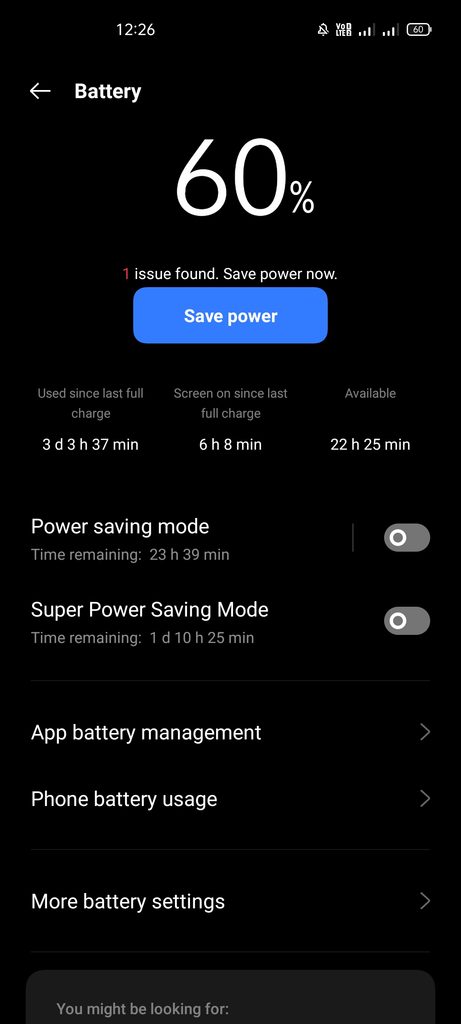
3. Look for an option called Battery Health or Battery Protection.
- OnePlus, Realme, and Oppo: Go to
Settings > Battery > Battery Health. You will see a number next to Maximum Capacity. - Xiaomi / Redmi: Go to
Settings > Battery > Battery Protectionto see your battery’s current rating. - Google Pixel (Pixel 8a and newer): Go to
Settings > Battery > Battery Healthto see the built-in status.
If your phone does not have this specific menu, move to the next method.
Method 2: For Samsung Galaxy Users (Official Diagnostic)
Samsung has a built-in diagnostic tool inside its official Samsung Members app, which comes pre-installed on almost every Galaxy phone.
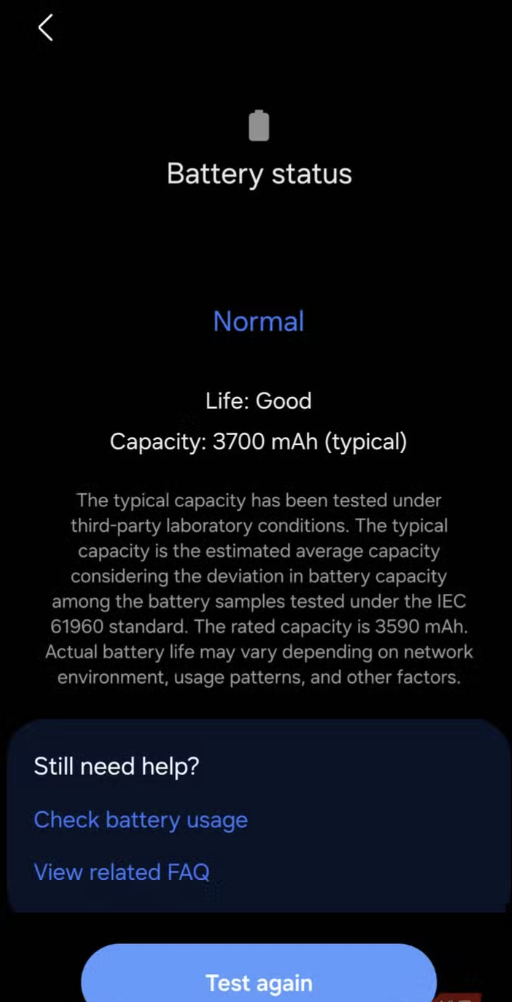
- Open the Samsung Members app on your phone.
- Tap on the Support tab at the bottom right corner.
- Tap on Phone Diagnostics.
- Scroll down and tap on Battery Status.
The phone will run a quick check and show your battery capacity along with a rating: Good, Normal, or Action Required.
If it shows “Action Required,” your battery has worn down and you should plan to replace it.
Method 3: Use the Hidden Dialer Code
Android has secret testing menus built into the phone dialer. This works very well on Motorola devices and stock Android phones.
My Personal Test Note:
When writing this guide, I tested the dialer code (
*#*#4636#*#*) on two devices: a Motorola phone and a Samsung Galaxy. The code opened the testing menu instantly on Motorola, but nothing happened on Samsung. If your screen stays blank after typing, your phone maker has simply disabled this menu for security reasons.
Here is how to try it:
- Open your default Phone / Calling app.
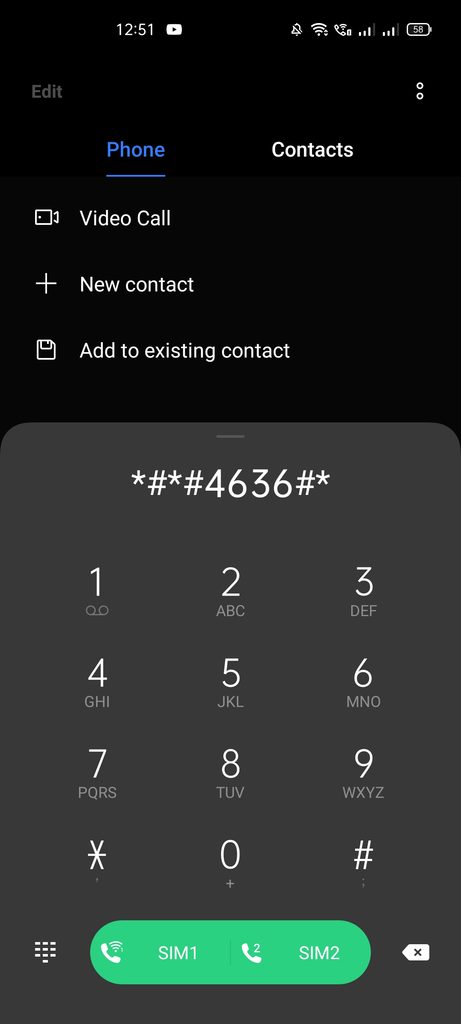
- Type this code:
*#*#4636#*#* - A hidden testing menu will appear on your screen.
- Tap on Battery Information.
- Look at the Battery Health line. It should say Good.
Method 4: Track Your Screen-On Time (Works on Every Phone)
If your phone hides the exact battery percentage, you can still test the battery’s real strength by tracking your screen time:
- Charge your phone to 100%.
- Use your phone normally until it drops down to 15% or 20%.
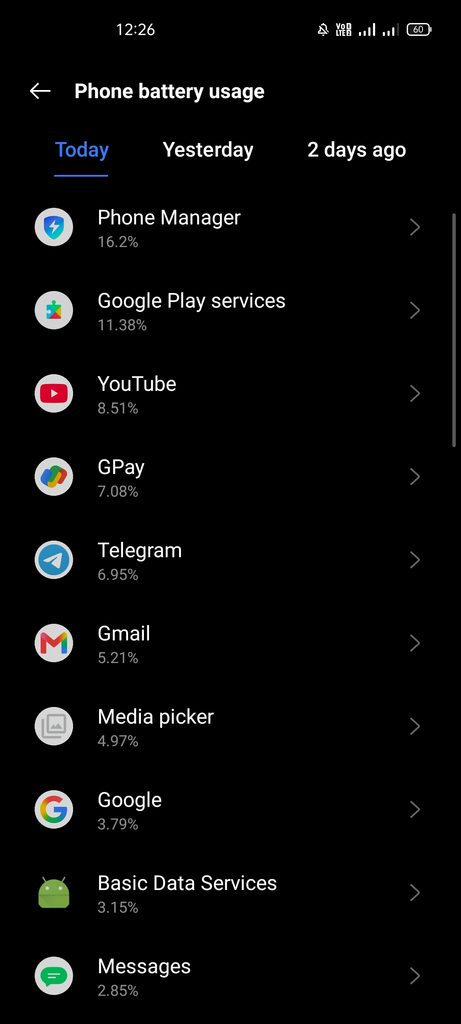
- Go to Settings > Battery > Battery Usage.
- Check your Screen-on time since last full charge.
A healthy phone usually gives you 5 to 7 hours of screen time with daily use (chatting, watching YouTube, web browsing). If your screen time has dropped below 3 hours without any heavy gaming, your physical battery is getting old and needs a change.
Warning Signs That Your Battery Is Failing
- Sudden shutdowns: Your phone turns off on its own while still showing 20% or 30% battery.
- Rapid percentage drop: The battery drops by 10% in just two or three minutes of normal typing.
- Heavy overnight drain: Leaving the phone idle while you sleep drains 15% to 20% of your power.
- Physical swelling: If the back panel or screen looks slightly pushed out, the battery is swelling. Stop using and charging the phone immediately, and visit a repair center.
Why does a phone jump from 20% to 0% all of a sudden?
This happens when an old battery can no longer hold its electric charge steadily. When the power drops below a certain point, the phone shuts down to protect its internal parts. No restart or software update can fix this issue—it is simply a sign of physical wear.
3 Simple Habits to Make Your Battery Last Longer
- Keep it between 20% and 80%: You do not always need to charge up to 100%. Unplugging near 80% and plugging in around 20% puts much less stress on the battery.
- Avoid heavy heat: Do not play heavy games while your phone is plugged into a fast charger. High heat wears down phone batteries faster than anything else.
- Skip cleaner apps: Stay away from apps that claim to “boost” or “cool down” your battery. Android manages its own background apps automatically.
A quick tip before you spend money on a replacement:
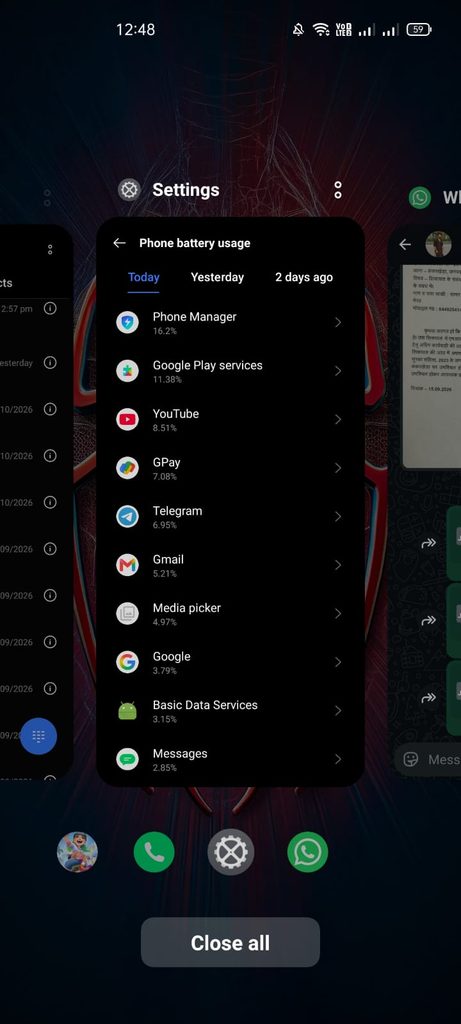
If your battery drains fast, check your recent apps list first. Many times, a newly updated app gets stuck running in the background and drains your power. Restart your phone and check your battery usage for a day. If the battery is still draining rapidly, visit an authorized service center to get a genuine replacement.