
Seeing full Wi-Fi signal bars on your phone or laptop but getting a “Connected, no internet” message is annoying. It simply means your device is talking to your Wi-Fi box, but the Wi-Fi box is not sending data out to websites.
Most of the time, this happens because of a temporary router glitch, an IP address mix-up, or a brief issue with your local internet service provider (ISP).
Before calling your cable operator or technician, try these simple, tested steps to get your connection back up and running.
Quick Check: Is the Problem in Your Device or the Wi-Fi Box?
Before touching any deep settings, check which devices are affected:
| What You See | What Is Going On | What You Should Do First |
|---|---|---|
| Only your phone has no internet | Your phone has an IP or network glitch | Disconnect and reconnect to Wi-Fi |
| All phones and laptops have no internet | The router or internet line is down | Restart the main Wi-Fi router |
| Wi-Fi works on phone, fails on laptop | Windows network settings need a refresh | Run network reset commands |
| Yellow mark on the Wi-Fi icon on PC | DNS or gateway error | Change DNS to Google DNS (8.8.8.8) |
1. Restart Your Wi-Fi Router the Right Way
A quick push of the power button often does not clear out stuck background data. Doing a complete power cycle gives the router a fresh start.
- Unplug the black power cord from the back of your Wi-Fi router.
- Wait at least 30 to 40 seconds.
- Plug the power cord back in firmly.
- Wait about 2 minutes until all front lights turn stable green or white.
- Reconnect your phone or laptop and open any website to test.
2. Forget the Wi-Fi Network and Reconnect
Sometimes a phone or laptop holds on to an old network connection that no longer works. Deleting the saved Wi-Fi details and reconnecting forces a fresh connection.
- On Android: Open Settings > Network & internet > Wi-Fi. Tap the small gear icon next to your Wi-Fi name, tap Forget, wait 10 seconds, and enter your password again.
- On Windows: Click the Wi-Fi icon at the bottom right corner of your screen, right-click your network name, choose Forget, and connect again using your Wi-Fi password.
3. Clear Network Cache on Your Computer (Windows)
If your laptop shows “No Internet” while your phone works fine on the same Wi-Fi, your computer’s built-in network cache might be stuck. You can clear it with a few basic commands:
- Click the Start button, type
cmd, right-click on Command Prompt, and choose Run as administrator. - Copy and paste each line below one by one, hitting Enter after each:DOS
ipconfig /flushdns ipconfig /release ipconfig /renew netsh winsock reset - Restart your laptop or PC.
4. Change to Free Google DNS
Your internet provider’s local server (DNS) might be down temporarily, making your browser think you have no internet. Switching to Google’s free public DNS usually fixes this right away.
On a Windows Laptop/PC:
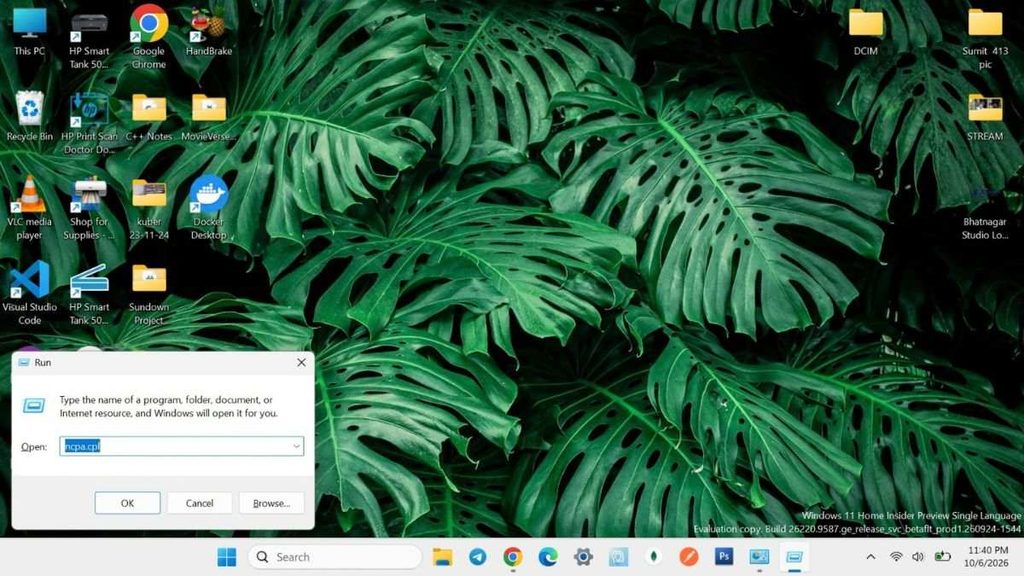
- Press the Windows Key + R, type
ncpa.cpl, and hit Enter.
2. Right-click your active Wi-Fi connection and click Properties.
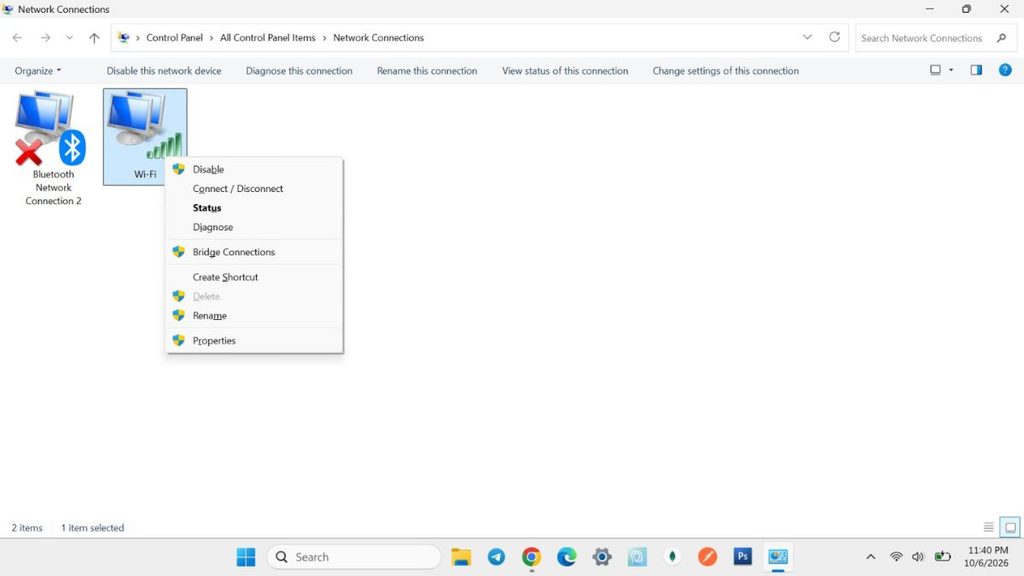
- 3. Double-click on Internet Protocol Version 4 (TCP/IPv4).
- 4. Select Use the following DNS server addresses.
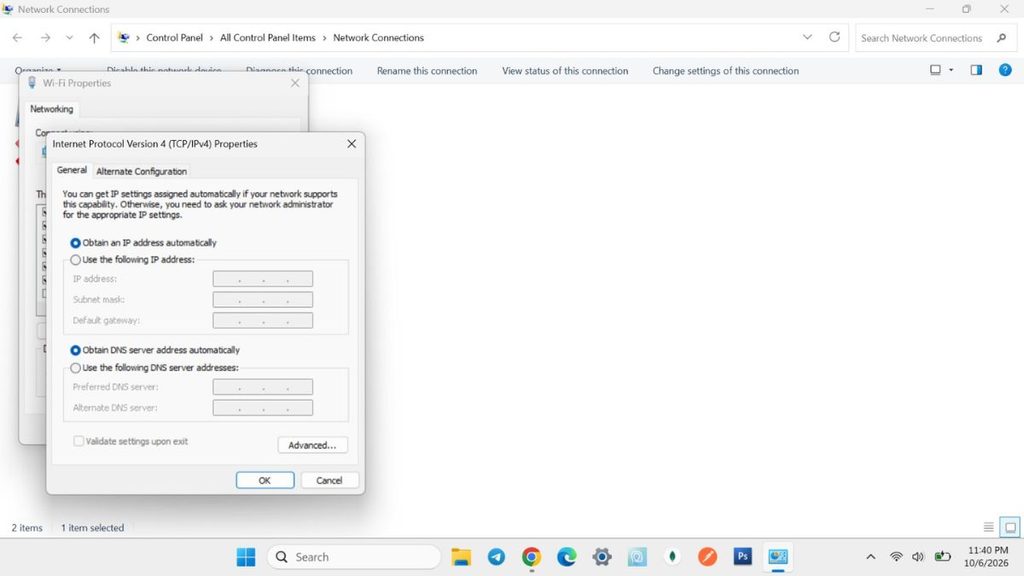
- Type these numbers in the boxes:
- Preferred DNS server:
8.8.8.8 - Alternate DNS server:
8.8.4.4
- Preferred DNS server:
- Click OK to save.
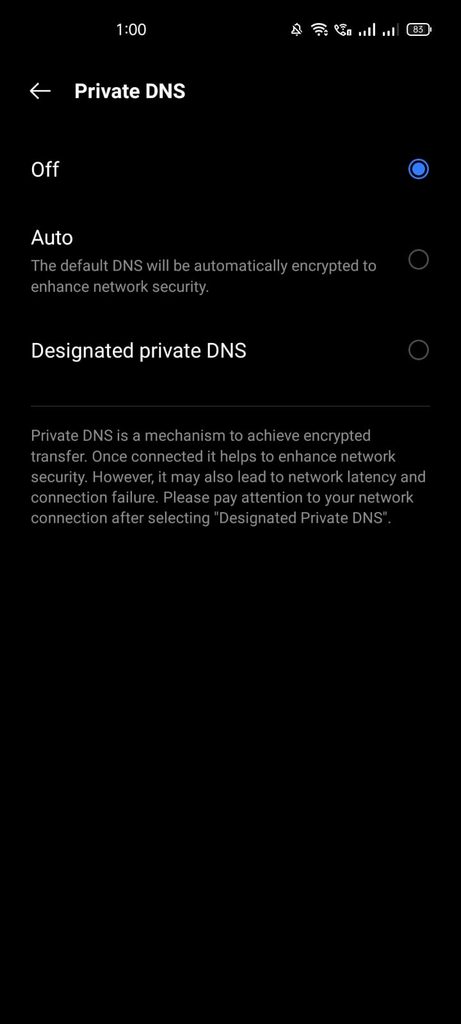
On an Android Phone:
- Go to Settings > Network & internet.
- Tap on Private DNS.
- Select Private DNS provider hostname.
- Type
dns.googleand tap Save.
5. Check Your Date and Time Settings
If your computer or smartphone shows the wrong date or time, secure websites will automatically refuse to open. Browsers do this for safety, and Windows or Android will display a “No Internet” error.
- Open your device Settings.
- Go to Date & Time.
- Make sure both Set time automatically and Set time zone automatically are turned ON.
6. Turn Off VPNs and Third-Party Cleaner Apps
If you use a VPN app (to hide your location or browse securely) or a third-party antivirus firewall, turn it off.
When a VPN disconnects suddenly, it often blocks all normal internet traffic in the background. Close the VPN app completely and see if websites start opening normally.
7. Check the Lights on Your Main Router Box
If none of your household devices can connect, take a close look at the physical router:
- Look for the Internet / WAN light (often looks like a small globe or says “WAN”).
- If this light is red, orange, or blinking rapidly, your internet wire has no signal coming from your broadband company.
- In this case, settings on your phone or laptop are not the issue—you will need to wait for your provider to finish line maintenance or call their support number.
Summary
In most cases, turning the router off for 30 seconds or changing your DNS address to Google solves the “Connected, no internet” message. Always test your phone first to see if the issue is with one single device or the entire internet line.
If you are also setting up your smartphone for better daily performance, you can read our practical guide on how to check Android battery health without using third-party apps safely.