
When you finish using Google Chrome, you click the cross button at the top corner and expect the browser to close completely. But if you check your computer a few minutes later, you might notice your laptop fan running fast, your battery dropping quickly, or your whole system feeling slow.
If you open Windows Task Manager, you will often find 5 to 10 Chrome tasks still open and using up your memory, even though no browser window is on your screen.
Chrome does this on purpose. It keeps background apps, website alerts, and extensions running so they can check for new updates. If you want Chrome to shut down fully when you close it, here are the easiest ways to turn this off.
Why Turn Off Chrome Background Tasks?
Before turning off the setting, here is a simple look at what happens when Chrome stays open in the background versus when it closes completely:
| What Happens on Your Computer | When Chrome Runs in Background | After You Turn It Off |
| RAM (Memory) Free | Locks up 400 MB to 1 GB of RAM | Frees up all RAM right after you close it |
| Laptop Battery Life | Drains faster while on battery | Battery lasts noticeably longer |
| Taskbar / System Tray | Small Chrome icon stays near the clock | Icon disappears completely |
| Website Pop-ups | Sites can send alerts anytime | Alerts only show when you actively browse |
| Starting Chrome Again | Opens 1 second faster | Opens normally in 2 to 3 seconds |
1. Turn Off Background Apps in Chrome Settings
This is the main fix. It takes less than half a minute and stops Chrome from doing anything in the background once you close your tabs.
- Open Google Chrome.
- Click the three dots in the top right corner.
- Click Settings.
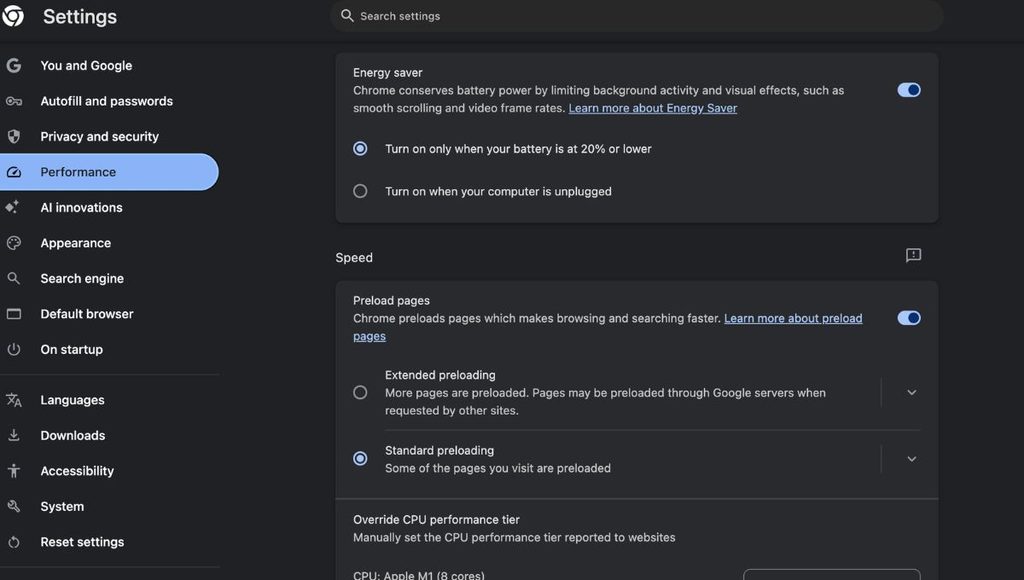
- In the left menu, click System.
- Look for the setting that says:“Continue running background apps when Google Chrome is closed”.
- Click the switch next to it to turn it OFF.
From now on, whenever you click the close button, Chrome will shut down completely and give your computer its memory back.
2. Close Chrome from the Windows Taskbar
If you used Chrome with background apps turned on before, a small Chrome icon might still be running near your Windows clock.
- Look at the bottom right corner of your screen (near the time and date).
- Click the small arrow pointing up (
^) to see hidden icons. - If you see the Google Chrome logo, right-click on it.
- You will see an option with a checkmark: “Let Google Chrome run in the background”. Click it to uncheck it.
- Click Exit.
3. Check and Remove Heavy Chrome Extensions
Some extensions like screen recorders, shopping tools, or offline note apps stay active in the background all day. If you have extensions you do not use anymore, removing them will speed up your computer.
How to see what extensions are running:
- Open Chrome and press Shift + Esc on your keyboard. This opens Chrome’s own Task Manager.
- Look at the list to see if any extension is using a lot of memory.
- To delete an extension, click the three dots in the top right > Extensions > Manage Extensions.
- Find the extension you do not need and click Remove.
Keeping only 2 or 3 essential extensions is the easiest way to keep your browser light.
4. Stop Websites from Sending Background Alerts
Some websites ask for permission to send you updates or notifications. These can trigger Chrome to wake up in the background.
- In Chrome, go to Settings > Privacy and security.
- Click on Site settings, then click Notifications.
- Choose “Don’t allow sites to send notifications”.
This stops unwanted websites from waking up Chrome to show shopping sales or news pop-ups.
What to Do If Chrome Is Still Stuck Open
If you followed the steps above and Chrome still shows up in your Task Manager:
- Press Ctrl + Shift + Esc together to open Windows Task Manager.
- Under the list of apps, find Google Chrome.
- Right-click on it and click End task.
- This closes all stuck processes right away.
Final Thoughts
You do not need to deal with a hot laptop or battery drain just to use Chrome. Turning off the single background toggle in your system settings fixes the problem for good.
If you also want to keep your other daily devices working properly, read our easy guide on how to check Android battery health without apps to see if hidden background services are draining your phone’s battery too.